How to schedule Reels on Instagram
To schedule a Reel on Instagram, use a Business or Creator account, create the Reel, open Advanced settings (or More options on Android), switch on the scheduling toggle, pick a date and time, and tap Schedule. You can also schedule Reels from Meta Business Suite in a browser, or with a tool that connects to Instagram and publishes for you.

Quick answer: There are three ways to schedule a Reel. 1) The Instagram app: Advanced settings, then the schedule toggle. 2) Meta Business Suite: Create reel, then Schedule, from a computer. 3) A scheduler like PostMyReels, which also posts the same video to TikTok and YouTube (its Instagram posting opens after Meta's review). All need a Business or Creator account.
What you need first
- A professional account. Personal Instagram accounts cannot schedule, and no third-party app can post to them. Switching to Business or Creator is free in Settings, and your followers and posts stay.
- A Facebook Page linked to the account, for Meta Business Suite and for tools such as PostMyReels. The Page can be empty.
- A finished vertical video. 9:16 is the safe choice for Reels. Length and size limits change, so check the Instagram Help Center, or read our note on how long a Reel can be.
Method 1: schedule a Reel in the Instagram app
- Tap + and choose Reel.
- Record or upload the video, edit it, and tap Next.
- On the share screen, add a caption, choose or adjust the cover, and add tags, location and any collaborators.
- Open Advanced settings (labelled More options on some Android versions) and switch on Schedule this Reel.
- Pick a date and time, then go back and tap Schedule.
Find scheduled Reels from your profile menu, where you can edit the time or caption, publish now or delete. Instagram changes the interface and the limits (how many days ahead, how many posts per day) from time to time, and sources disagree on the exact numbers, so use the date picker in your own app. The Instagram Help Center has the official wording.
Good for: one account and a few Reels a week. Not good for: teams, clients, or the same video on other platforms.
Method 2: Meta Business Suite
- Open Meta Business Suite and select your Page and the linked Instagram account. See our guide to Meta Business Suite scheduling for the full tour.
- Choose Create reel.
- Upload the video, write the caption, and choose where it shows (Instagram, and optionally Facebook).
- Switch from sharing now to Schedule, pick the date and time, and confirm.
Good for: desktop scheduling, and posting to Instagram and a Facebook Page together. Not good for: TikTok or YouTube.
Method 3: a scheduler that publishes for you
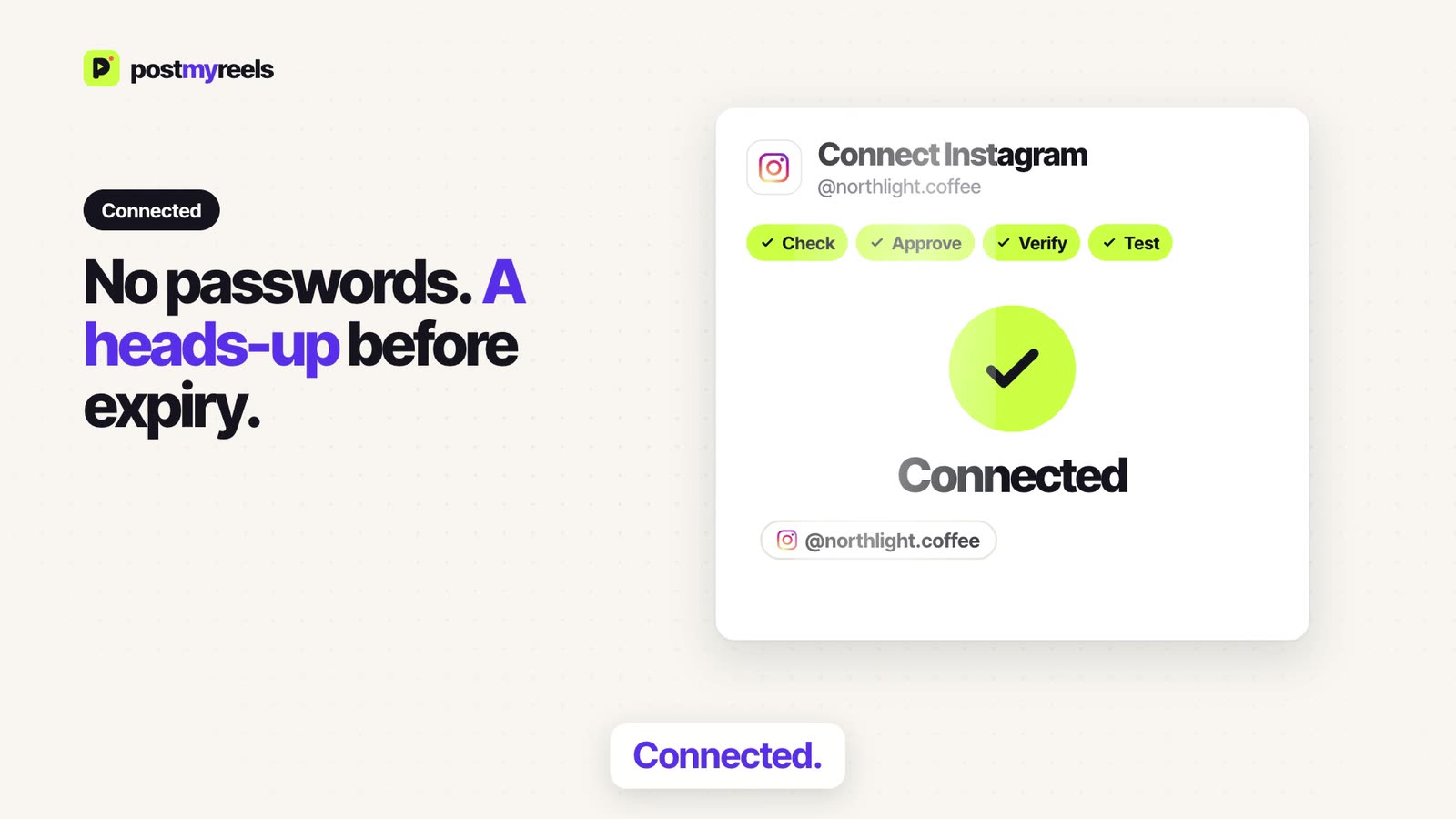
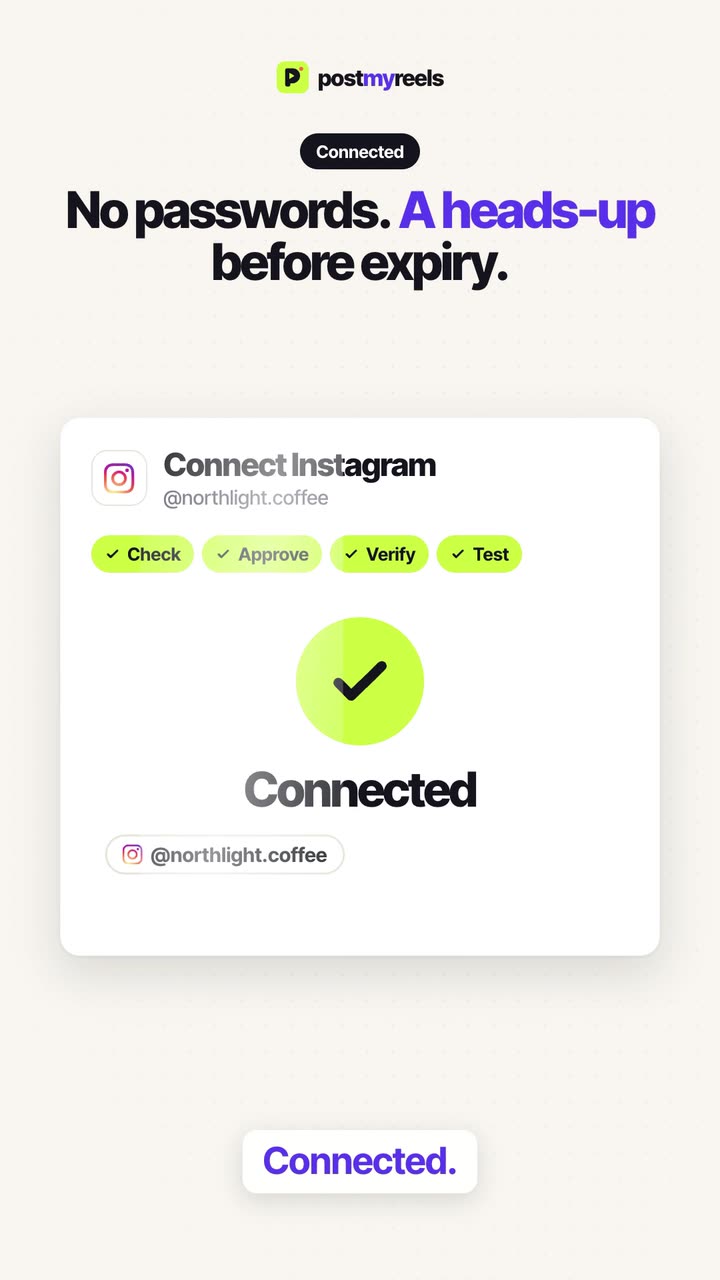
A scheduler is worth it when the same video goes to several platforms, or you manage more than one account. PostMyReels connects to Instagram through Meta's official login (no passwords), checks the requirements for you, and will post Reels at the time you pick once the review below passes.
- Connect Instagram. The connect flow checks that the account is Business or Creator and linked to a Facebook Page, and gives a plain-language fix if not.
- Drop the Reel. The composer checks aspect ratio, duration and size on drop.
- Choose Reel or feed in the Instagram options and write the caption. Add TikTok and YouTube if the video goes there too.
- Pick the time or add to a queue. You can schedule up to 365 days ahead.
- Watch the status. Failures show on top with the cause and a one-click retry.
Instagram posting through PostMyReels opens after Meta's review. Until then, schedule Reels in the Instagram app or Meta Business Suite; YouTube works today. For developers, POST /posts with scheduled_at does the same; see the Instagram API guide.
Which method should you use?
| Situation | Best fit |
|---|---|
| One account, a few Reels a week | Instagram app |
| Reels plus a Facebook Page, working on desktop | Meta Business Suite |
| Same video on Instagram, TikTok and YouTube | PostMyReels |
| Several brands, clients or an API | PostMyReels or another multi-account tool |
If you want the wider picture, including photos and carousels, read how to schedule Instagram posts.
Reel details to set before you schedule
- Cover. Choose a frame or upload an image that looks right on your grid.
- Caption. Finish it now, with hashtags and mentions. A scheduled post is easy to forget.
- Share to feed. Decide whether the Reel also shows on your profile grid. In PostMyReels this is the share_to_feed choice in the Instagram options.
- Time zone. Confirm which time zone the scheduler uses.
A simple routine for scheduled Reels
- Batch the filming. Shoot three to five Reels in one session.
- Edit and export vertical. One export setting saves time.
- Write captions together from a saved note of hashtags and calls to action.
- Schedule the week. Leave one open slot for something timely.
- Check the list on Monday and reply to comments after each Reel goes live.
Need dates to plan around? See the 2027 social media calendar.
Common problems
There is no schedule option
The account is probably personal. Switch to Business or Creator in Settings and update the app.
A tool will not connect to Instagram
The account needs to be linked to a Facebook Page. Link or create one, reconnect, choose that Page and keep every permission box ticked.
The Reel failed or never appeared
Check the file first: vertical ratio, supported format and length. Then check that the connection has not expired. In PostMyReels the failed delivery shows the cause and a retry button. For API users, the container-not-ready error has its own fix.
The Reel looks cropped on the grid
Keep important content away from the edges. The grid crops differently from the Reels feed.
The time is wrong
Almost always a time zone mismatch. Confirm the zone and recheck the first scheduled post.
What to do with the first hour after a Reel goes live
A scheduled Reel still needs you for a few minutes. Reply to early comments, pin a good one if you like, and check that the cover and caption look right on your profile. If something is wrong, you can edit the caption or delete and repost. Treat the first hour as part of the schedule: put a reminder in your calendar for each posting time, so replying stays part of the routine instead of an afterthought.
Scheduling Reels for more than one account
The Instagram app handles one account at a time. If you manage several brands, you switch accounts and repeat the steps, which is where mistakes happen: the wrong caption on the wrong account, or a Reel scheduled at the wrong hour. A tool with profiles keeps each brand and its accounts separate, shows the status per account, and lets you review a week at a glance. Agencies can also send a white-label connect link so a client connects their own Instagram without sharing a password; see the agencies page.
What can and cannot be scheduled
Reels, feed photos and carousels can be scheduled in the app and in Meta Business Suite for professional accounts. Stories are handled differently and were not part of in-app scheduling at launch, so check what your app offers. PostMyReels is built for Reels, photos and carousels on Business and Creator accounts, opening after Meta's review. If you need a Story to go live at a precise moment, post it from the app yourself at that time.
Frequently confused points
- "Scheduled" is not "draft". A draft sits in your app until you publish it. A scheduled Reel publishes by itself at the chosen time.
- Cover and grid. A Reel shown in the feed uses its cover on your grid. Pick the cover before you schedule.
- Editing after scheduling. You can usually edit the caption or time of a scheduled Reel. Changing the video itself generally means deleting and scheduling again.
- Tokens expire. Third-party connections need to be renewed from time to time. PostMyReels warns 7 days and 1 day before expiry.
Want to schedule Reels with your TikToks and Shorts? Start free See also the social media scheduler.
Done? Connect Instagram now and we'll run a test post.
Checked against each platform's current rules. Something changed? Tell us.
Questions
Can you schedule Reels on Instagram?
Yes. With a Business or Creator account you can schedule a Reel in the Instagram app (Advanced settings, schedule toggle), in Meta Business Suite, or with a scheduling tool.
How do I schedule a Reel on Instagram?
Create the Reel, open Advanced settings (More options on some Android versions), switch on Schedule this Reel, pick a date and time, and tap Schedule.
Is there an Instagram Reel scheduler for desktop?
Yes. Meta Business Suite schedules Reels from a computer, and tools like PostMyReels will too (ours opens for Instagram after Meta's review). Both need a Business or Creator account linked to a Facebook Page.
How far ahead can I schedule Instagram Reels?
Instagram has changed this over time and sources disagree, so use the date picker in your app and Instagram's Help Center. PostMyReels schedules up to 365 days ahead.
Can I schedule Reels from a personal account?
No. Neither Instagram nor any third-party tool can schedule for personal accounts. Switching to Business or Creator is free and keeps your followers.
Can I schedule the same Reel to TikTok and YouTube Shorts?
Yes, with a multi-platform scheduler. You upload once and pick the accounts. YouTube works today. TikTok posts publish as private ("Only me") until TikTok's audit of our app passes. Instagram opens after Meta's review.
Related guides

Instagram post scheduler for Reels, photos and carousels
Schedule Instagram Reels, feed posts and carousels from one dashboard. For Business or Creator accounts. Opens after Meta's review.
Read →
How to schedule Instagram posts and Reels
Schedule a post in Instagram natively, with Meta Business Suite, or with PostMyReels. Requirements, steps, best practice and fixes for common errors.
Read →
Social media scheduler for short video
Schedule social media posts once and publish to TikTok, Instagram and YouTube on time. One dashboard, plain-language errors, free plan with no card.
Read →Post to TikTok, Instagram and YouTube from one place.
Free plan, no card. Connect an account in under a minute.