How to schedule social media posts across platforms
To schedule social media posts, write or upload the post as usual, then look for a Schedule option instead of Post now, pick a date and time, and confirm. TikTok, Instagram and YouTube all have a built-in scheduler, and a third-party tool lets you do it for all three from one screen. Here is how each route works and a simple weekly routine.

Quick answer: You have two routes. Native: each platform has its own scheduler, free, but you repeat the work in every app. One tool: a social media scheduler such as PostMyReels lets you upload once, pick accounts and a time, and publish to TikTok, Instagram and YouTube. Use native for one account; use a tool when you post the same content in several places or for several brands.
Why schedule posts at all
Scheduling separates the making of content from the publishing of it. You film and write when you have energy, and the post goes out when your audience is awake. The practical benefits are small but real: fewer missed days, no phone-in-the-parking-lot posting, and room to plan a launch or a holiday ahead. See the 2027 social media calendar for the dates worth planning around.
It will not make a weak post strong. A scheduled post still needs a clear hook, a good first second, and someone to answer comments.
Method 1: use each platform's own scheduler
All three platforms PostMyReels supports offer built-in scheduling. The menus and limits change often, so treat the steps as the usual path and the platform's own help page as the source of truth.
Switch to a Business or Creator account (free), create a post or Reel, open Advanced settings, turn on the scheduling option, pick a date and time, and confirm. Meta Business Suite also schedules from a browser. Full steps: how to schedule Instagram posts and how to schedule Reels. Official reference: Instagram Help Center.
TikTok
TikTok lets you set a publish time when you upload from a computer in TikTok Studio, and the app has a similar option for some accounts. The allowed window and the options vary, so check the date picker and TikTok's help pages. Full steps: how to schedule TikTok videos. Official reference: TikTok Support.
YouTube
In YouTube Studio, upload the video, and on the visibility step choose Schedule, then set the date, time and time zone. Shorts use the same flow. Full steps: how to schedule YouTube Shorts. Official reference: YouTube Help: schedule a video.
| Platform | Where to schedule natively | Check before you plan far ahead |
|---|---|---|
| App (Advanced settings) or Meta Business Suite | Business or Creator account; the maximum lead time shown in your date picker | |
| TikTok | TikTok Studio on desktop, some app flows | The window shown in the date picker; account type |
| YouTube | YouTube Studio (desktop) or the YouTube app | Time zone; video must be set up as scheduled, not public |
We deliberately avoid printing "you can schedule N days ahead" for each platform. Those numbers have changed and guides disagree. Your own date picker is the answer that is correct today.
Method 2: schedule everywhere from one tool
If you post the same video on TikTok, Instagram and YouTube, doing it natively means three uploads, three captions and three time settings. A multi-platform scheduler turns that into one form. This is how it works in PostMyReels:
- Connect your accounts. Each platform uses its official login, so there are no passwords to share. The connect flow checks the requirements first (for Instagram, a Business or Creator account linked to a Facebook Page) and explains any problem in plain language.
- Drop the video. The composer checks aspect ratio, duration and file size as soon as you drop the file.
- Pick accounts. Tick one or several. Platform options (TikTok privacy and disclosure, YouTube title and privacy, Instagram Reel or feed) appear inline.
- Write the caption. One caption for all, or override it per platform.
- Choose a time or add to the queue. You can schedule up to 365 days ahead.
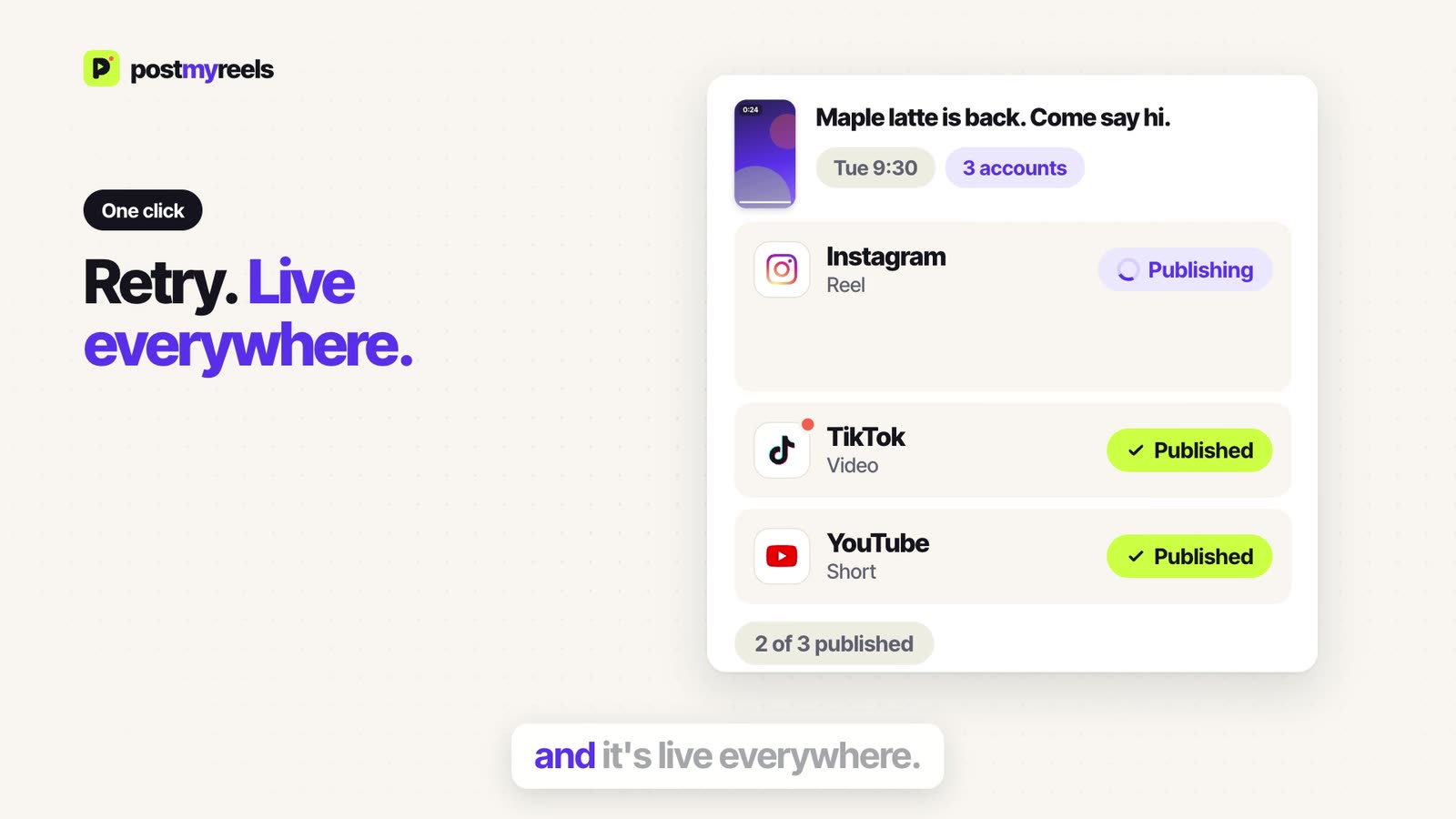
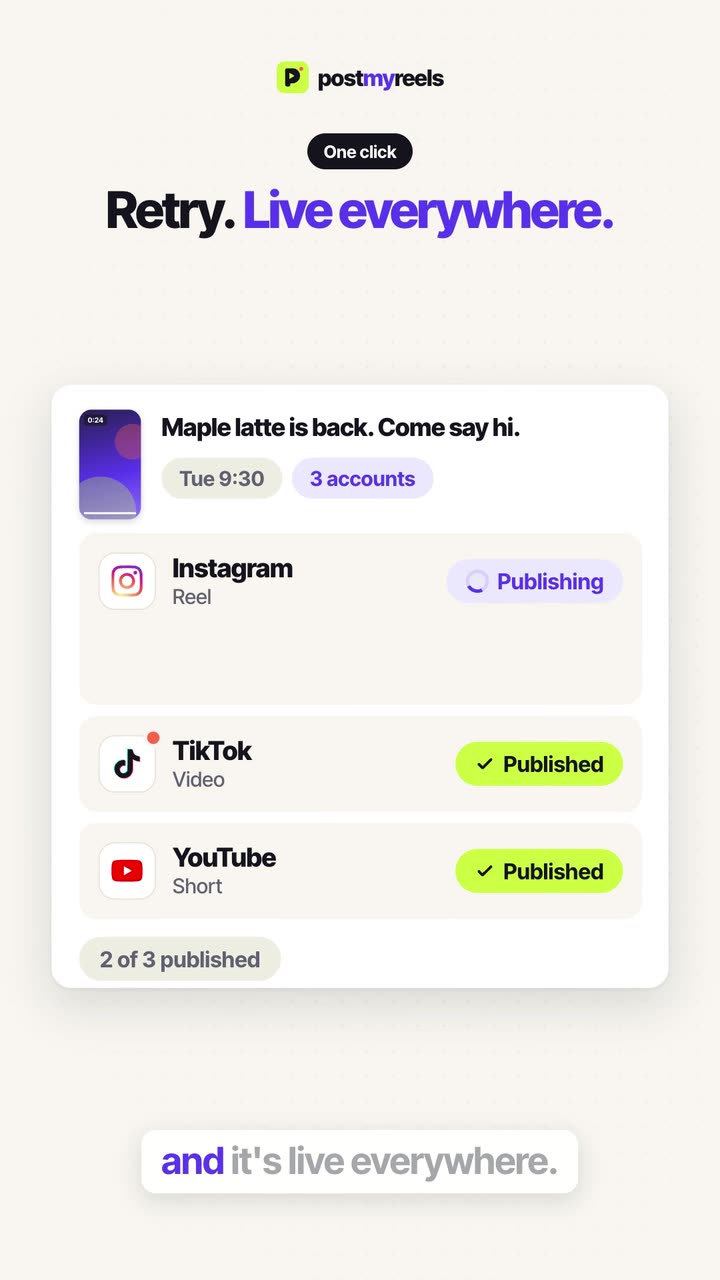
- Check the status. Each platform shows its own status. A failed delivery is pinned on top with the cause and a one-click retry.
YouTube works today. TikTok posts publish as private ("Only me") until TikTok's audit of our app passes. Instagram opens after Meta's review. If you build your own workflow, the API does the same through POST /posts with a scheduled_at value.
Native scheduler or tool: how to choose
| Your situation | Best fit |
|---|---|
| One account on one platform | The platform's own scheduler |
| Same video on TikTok, Instagram and YouTube | A multi-platform scheduler |
| Several brands or clients | A tool with profiles and client connect links; see agencies |
| You need automation or a no-code flow | An API-based tool; see developers |
| You only want to compare options | Best social media schedulers |
How to post on multiple platforms without repeating yourself
Posting to several platforms is mostly an export question. Short vertical video (9:16) works on TikTok, Instagram Reels and YouTube Shorts, so one file can cover all three. Small differences matter, though:
- Captions. A TikTok caption can be casual; a YouTube title needs to explain the video to a search audience. Write the first line for each.
- Hashtags. Keep a few relevant ones per platform instead of a copied block.
- Length and size limits. Check the platform's help pages. See TikTok video size and how long a Reel can be.
- Cover and thumbnail. Pick one per platform if you can.
- Watermarks. Reposting a video with another app's watermark often reduces reach. Export a clean file.
For the full workflow, read how to post the same video on TikTok and Instagram.
Social media post planning: a weekly workflow
- Monday: choose. Pick the topics for next week from your calendar, comments and questions. Five ideas are enough for three posts.
- Tuesday or Wednesday: make. Film everything in one block, edit, and export vertical files.
- Thursday: write. Captions, titles, hashtags, links.
- Friday: schedule. Upload and schedule the full week. Leave one gap for something timely.
- Daily, 10 minutes: reply. Answer comments close to the time a post goes live.
- Once a month: review. Look at what performed and plan the next month. A calendar template keeps this visible.
If your tool schedules only two weeks ahead, run this routine every week or every other week. If you want a posting rhythm to start from, see the social media posting schedule guide.
Common scheduling problems
The post did not go out
Check whether the account connection expired. Platforms expire access tokens, and a scheduled post fails if the account was disconnected. PostMyReels warns 7 days and 1 day before expiry and pins failed posts with the cause.
The time is wrong
Almost always a time zone mismatch. Confirm the zone on the schedule screen and check the first scheduled post after saving.
The video was rejected or cropped
Wrong aspect ratio or format. Re-export vertical 9:16 with important content away from the edges.
I cannot schedule on my account
Some features need a professional account type (Instagram) or are rolled out gradually. Check the platform's help page for your account.
The post is private
Unaudited apps can publish only as private on TikTok. On YouTube, uploads publish with the privacy you choose, but the daily API quota limits how many go out per day. These are platform rules, not bugs in scheduling.
Is it safe to use a scheduler?
Use tools that connect through the platform's official login and let you disconnect any time. Never give your password to a scheduler. PostMyReels uses each platform's OAuth, so it never sees your password.
Choosing a scheduling tool: what to look for
Not every scheduler fits every team. These are the questions that matter, in order:
- Does it support the platforms you actually use? PostMyReels covers TikTok, Instagram and YouTube only. If you need Facebook Pages, LinkedIn or X, pick a tool that has them, or use one of the options in our best social media schedulers roundup.
- Is the connection official? Look for the platform's own login screen, not a request for your password.
- What happens when a post fails? A good tool tells you why and lets you retry in one click.
- Does it handle your volume? Count your accounts and posts per month before you compare plans.
- Can it grow with you? Agencies need client profiles and white-label connect links; developers need an API.
Tips that apply to every platform
- Write for the first line. Many captions are cut off. Put the point first.
- Add the call to action in the video too. Do not rely on the caption alone.
- Do not schedule during a crisis. If something big happens in the news or in your business, pause the queue and look at what is coming.
- Keep a backup. Store the original video files. If a platform rejects an upload, you re-export instead of re-shooting.
- Review the queue once a week. Five minutes to look through upcoming posts catches errors before your audience does.
Where scheduling fits in a content calendar
A calendar says what and when; a scheduler makes it happen. Many people keep both in one place, with the calendar as a view of the scheduled posts. In PostMyReels, the calendar is simply a view of your posts. For planning dates, see the 2027 calendar, and for a repeatable structure, the content calendar guide.
Ready to schedule once and publish everywhere? Start free More on the social media scheduler page.
Done? Connect it now and we'll run a test post.
Checked against each platform's current rules. Something changed? Tell us.
Questions
How do I schedule posts on social media?
Create the post, then choose Schedule instead of Post now and set a date and time. Instagram, TikTok and YouTube each have a built-in scheduler, and tools like PostMyReels schedule to all three from one form.
Can I schedule posts on multiple platforms at once?
Yes, with a multi-platform scheduler. You upload once, tick the accounts, set the caption and time, and the tool publishes to each platform. Native schedulers only work inside their own app.
How far ahead can I schedule social media posts?
It depends on the platform and the tool, and the limits change. Use the date picker in each app as the source. PostMyReels schedules up to 365 days ahead.
Does scheduling a post change its reach?
We do not promise reach from scheduling. What usually hurts a post is a weak hook, a wrong file format, or nobody replying to comments, and scheduling does not change any of that.
Do I need a business account to schedule?
For Instagram, yes: Business or Creator, linked to a Facebook Page for third-party tools. TikTok and YouTube have their own account requirements. Check each platform's help page.
What is the best time to schedule posts?
Start from your own analytics rather than a generic chart, and keep a steady rhythm. Then adjust. Our posting schedule guide has a starting point.
Related guides

Social media scheduler for short video
Schedule social media posts once and publish to TikTok, Instagram and YouTube on time. One dashboard, plain-language errors, free plan with no card.
Read →
How to schedule Instagram posts and Reels
Schedule a post in Instagram natively, with Meta Business Suite, or with PostMyReels. Requirements, steps, best practice and fixes for common errors.
Read →
How to schedule TikTok videos
Schedule a TikTok with TikTok Studio on desktop, see what the mobile app allows, and use PostMyReels or the TikTok API. Steps, limits and caveats.
Read →Post to TikTok, Instagram and YouTube from one place.
Free plan, no card. Connect an account in under a minute.