How to schedule YouTube Shorts
Yes, you can schedule YouTube Shorts. Upload the vertical video in YouTube Studio, choose Schedule on the visibility step, pick a date, time and time zone, and confirm. Shorts use the same scheduler as regular videos. You can also schedule them from the YouTube app, or from a tool that posts to YouTube, TikTok and Instagram at once.

Quick answer: Can you schedule YouTube Shorts? Yes. In YouTube Studio, click Create, then Upload videos, add your vertical file, and on the visibility step choose Schedule. Set the date, time and time zone, then click Schedule. To schedule Shorts to YouTube, TikTok and Instagram together, use a tool like PostMyReels.
Can you schedule YouTube Shorts?
Yes. YouTube does not have a separate scheduler for Shorts. A Short is a vertical video that YouTube treats as a Short, and it follows the same upload and visibility steps as any other video. So "can YouTube Shorts be scheduled" has the same answer as "can YouTube videos be scheduled": yes, from Studio on a computer, and in many versions of the YouTube app.
What decides whether a video counts as a Short is the file, not a special setting. YouTube Help describes Shorts as vertical videos of up to 3 minutes, with uploads at up to 1080p. Check YouTube Help on creating Shorts for the current rules, because Google has changed the maximum length before.
Method 1: schedule a Short in YouTube Studio (desktop)
This is the most reliable route, because the desktop upload flow always shows the schedule option.
- Open YouTube Studio and sign in to the channel.
- Click Create, then Upload videos, and choose your vertical video file.
- Fill in the title, description and audience settings. Add a title that tells people what the Short is about.
- On the last step, Visibility, pick Schedule instead of Public or Private.
- Set the date, time and time zone for publishing.
- Click Schedule.
Per YouTube Help, a video can only be scheduled if it was set to Private or Schedule on the upload page. After you save, the video sits as private until the time arrives. To change the time later, open Content in Studio, select the video, click Edit next to Visibility, and choose a new time. These steps come from YouTube Help: schedule a video.
Method 2: schedule from the YouTube app (phone)
On a phone, create or upload the Short in the YouTube app, and on the visibility step look for Schedule. Recent app versions show it. If you do not see it, update the app. The fallback that works everywhere is to upload the Short as Private from your phone, then open YouTube Studio on a computer (or in your phone's browser in desktop mode), open the video and set the schedule there.
Menus move, so if a label differs from what you see on screen, follow your screen and the YouTube Help page above.
Method 3: schedule Shorts with a tool
Tools help in two cases: you want the same video on more than one platform, or you want to queue Shorts in bulk without opening Studio each time. They connect to your channel through Google's official login, with no password shared.
With PostMyReels the steps look like this:
- Connect your YouTube channel. You sign in with Google and grant the permissions. A test run right after connecting confirms it works.
- Drop the video. The composer checks the aspect ratio and duration and tells you whether the file will post as a Short.
- Pick YouTube, plus TikTok and Instagram if you like. Set a YouTube title and privacy, and a caption for the others.
- Choose a time, or add the video to a queue. You can schedule up to 365 days ahead.
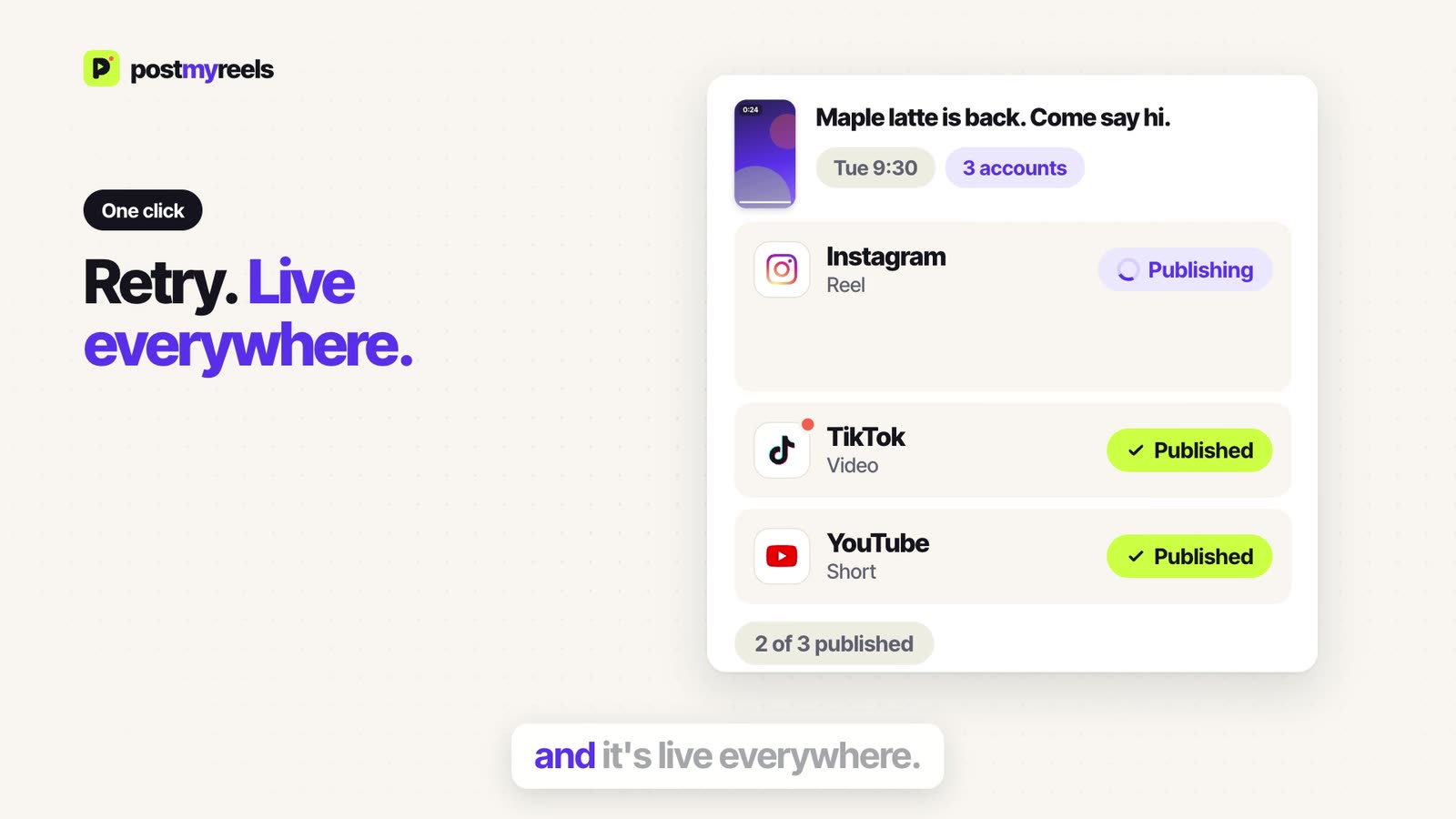
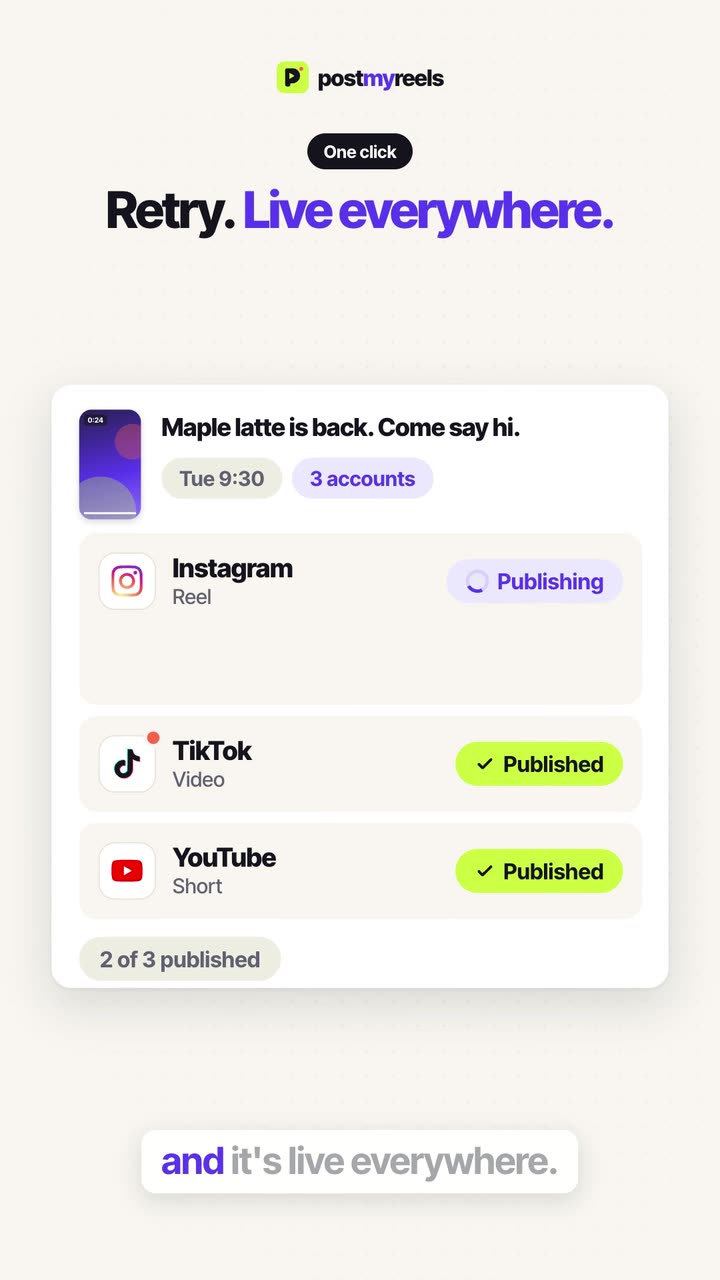
- Check status. Each platform shows its own status, and a failure is pinned on top with the cause and a one-click retry.
YouTube works today. Uploads publish with the privacy you choose, and our daily YouTube upload quota is still the default while an increase request is reviewed. For the other two, TikTok posts stay private until TikTok's audit passes and Instagram opens after Meta's review. If you build your own flow, the YouTube API guide covers the details, including quota limits.
Native Studio or a tool: which one?
| Situation | Best fit |
|---|---|
| One channel, a few Shorts a week | YouTube Studio |
| Same video on YouTube, TikTok and Instagram | PostMyReels or another multi-platform scheduler |
| Several channels or clients | A tool with profiles; see agencies |
| Automation from n8n, Make or code | The PostMyReels API |
Checklist before you schedule a Short
- Vertical file. Export 9:16 and keep important content away from the edges so the interface does not cover it.
- Length within the Shorts limit. Check YouTube Help for the current maximum.
- Title and description. A Short still has a title. Write it for search, not as a copy of your TikTok caption.
- Audience setting. YouTube asks whether the video is made for kids. Answer it truthfully.
- Time zone. The scheduler uses a time zone you choose. Confirm it.
- Thumbnail. Shorts have limited thumbnail control compared with long videos, so test how the preview looks.
Good habits for scheduled Shorts
- Batch. Film and edit several Shorts in one session, then schedule a week or two at once.
- Keep a rhythm. A steady posting pattern is easier to keep than a perfect time. Start from your own analytics for the best days.
- Be around after publishing. Reply to comments in the first hour.
- Do not reuse watermarked files. Export a clean version from your editor rather than saving from another app. See cross-posting TikTok to YouTube Shorts.
- Check scheduled videos. A quick look at the Content tab in Studio before the week starts catches a wrong file or time.
Common problems
I do not see the Schedule option
Update the YouTube app, or upload as Private and schedule in Studio on a computer. The schedule step also needs the video to be set to Private or scheduled on the upload page.
My Short shows as a regular video
The file probably does not meet the Shorts rules for orientation or length. Re-export vertical and within the current length limit, then re-upload.
The published time looks off
YouTube Help notes that the watch page's Published on date uses Pacific time, so it may differ from the date shown in Studio for people in other time zones. Check the time zone you chose on the schedule screen.
The video is private after the scheduled time
A strike on the channel can force private status during a penalty period. In that case the video needs to be rescheduled or made public by hand after the cause is cleared.
Scheduling Shorts alongside TikTok and Instagram
Most creators who post Shorts also post the same clip to TikTok and Instagram Reels. The video file is usually the same: vertical, short, clean of watermarks. What differs is the text around it. A YouTube Short has a title and description that feed search and suggestions. A TikTok caption is quick and casual. An Instagram caption sits between the two. When you schedule from one form, write the YouTube title first, then adjust the caption for the others. The complete scheduling guide covers this workflow across platforms.
How many Shorts to schedule at once
There is no magic number. A steady rhythm you can keep beats a burst you cannot. A common pattern is to film once a week and schedule the next seven days in one session. If you use a tool that looks only a couple of weeks ahead, repeat the session weekly. Keep one slot open for something topical, and always check the Content tab in Studio on the day to see that each Short is queued.
Scheduling Shorts through the API
Developers can automate the same flow. YouTube's Data API handles uploads, with a daily quota that limits how many videos a project can upload; the upload quota guide explains it. PostMyReels wraps this: send POST /posts with the video, platform[]=youtube, a title and scheduled_at, and get back a post_id with a status for each delivery. Test-mode keys validate everything and post nothing, so you can try the call safely. See the API overview.
What scheduling does not change
Scheduling only controls when a Short goes public. It does not decide whether it is a Short, how many people see it, or how it ranks. Those depend on the video itself, so the best use of the time scheduling saves is on the first seconds of each clip.
Want to queue Shorts together with TikTok and Instagram? Start free
Done? Connect YouTube now and we'll run a test post.
Checked against each platform's current rules. Something changed? Tell us.
Questions
Can you schedule YouTube Shorts?
Yes. Upload the vertical video in YouTube Studio, choose Schedule on the Visibility step, set the date, time and time zone, and click Schedule. Shorts use the same scheduler as normal videos.
Can I schedule YouTube Shorts from my phone?
In recent versions of the YouTube app the visibility step offers Schedule. If you do not see it, update the app, or upload as Private and set the schedule from YouTube Studio on a computer.
Can YouTube Shorts be scheduled in bulk?
Studio schedules one upload at a time. A tool with a queue, or an API, lets you line up many Shorts at once. PostMyReels has a queue and an API for that.
How far ahead can I schedule a YouTube Short?
YouTube Help does not list a maximum on its scheduling page. Use the date picker in Studio. PostMyReels schedules up to 365 days ahead.
Can I schedule a Short to YouTube, TikTok and Instagram together?
Yes, with a multi-platform scheduler. You upload once, choose the accounts, and set platform options. YouTube works today. TikTok posts publish as private ("Only me") until TikTok's audit of our app passes. Instagram opens after Meta's review.
Why is my scheduled Short private?
A video must be Private until it is published, and it can stay private if the channel has a strike. Check Visibility in Studio.
Related guides

YouTube Shorts scheduler
Schedule YouTube Shorts with the file checked on drop: vertical or square, up to 3 minutes. TikTok too; Instagram after Meta's review.
Read →
Social media scheduler for short video
Schedule social media posts once and publish to TikTok, Instagram and YouTube on time. One dashboard, plain-language errors, free plan with no card.
Read →
How to schedule social media posts across platforms
How to schedule social media posts natively or with a tool, how far ahead each platform lets you go, and a simple weekly workflow for TikTok, IG and YouTube.
Read →Post to TikTok, Instagram and YouTube from one place.
Free plan, no card. Connect an account in under a minute.